This is default featured slide 1 title

Go to Blogger edit html and find these sentences.Now replace these sentences with your own descriptions.This theme is Bloggerized by Lasantha Bandara - Premiumbloggertemplates.com.

This is default featured slide 2 title

Go to Blogger edit html and find these sentences.Now replace these sentences with your own descriptions.This theme is Bloggerized by Lasantha Bandara - Premiumbloggertemplates.com.

This is default featured slide 3 title

Go to Blogger edit html and find these sentences.Now replace these sentences with your own descriptions.This theme is Bloggerized by Lasantha Bandara - Premiumbloggertemplates.com.

This is default featured slide 4 title

Go to Blogger edit html and find these sentences.Now replace these sentences with your own descriptions.This theme is Bloggerized by Lasantha Bandara - Premiumbloggertemplates.com.

This is default featured slide 5 title

Go to Blogger edit html and find these sentences.Now replace these sentences with your own descriptions.This theme is Bloggerized by Lasantha Bandara - Premiumbloggertemplates.com.

Showing posts with label Css. Show all posts

Sunday, 17 June 2012

Add Author Information Below Every Blog Post In Blogger


About Author

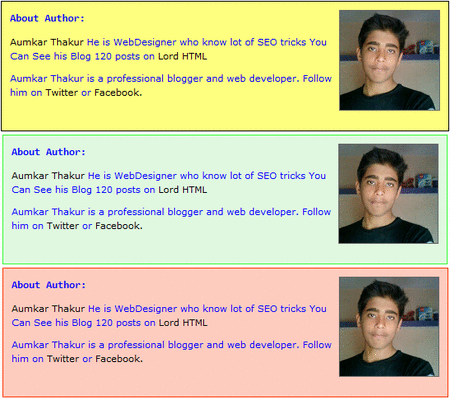
Adding Author information below post is very important if you want to verify your authorship in Google.I made this gadget it is awesome because it is having Hover effect and also active effect.In normal position color of this box will be yellow but when you mouse over it then it changes it color to green and when you click on box it will change it color to Red.

Now lets see how to add this widget to blogger blogs.


Step 1


  • Go to Blogger Dashboard > Design > Edit HTML
  • Search  ]]></b:skin> (How To Search)
  • Add below code just above  ]]></b:skin> and save template.


.author_info {
 float: left;
 width: 520px;
 padding: 10px;
 border: 1px solid #000000;
 margin-bottom: 15px;
 margin-top: 15px;
 background: #FFFF7F;
        font-family:verdana;
}
.author_info:hover {
 border: 1px solid #2EFE2E;
 background: #E0F8E0;
}
.author_info:active {
 border: 1px solid #FF3300;
 background: #FECCBF;
}
.author_info h3 {
 margin-bottom: 10px;
        font-family:consolas;
}
.author_photo {
 float: right;
 margin: 15 0 0 10px;
}
.author_photo img {
 border: 1px solid #666;
}


Step 2


  • Go to Blogger Dashboard > Design > Edit HTML
  • Search <div class='post-footer-line post-footer-line-1'/>  (How To Search)
  • Add below code just above   <div class='post-footer-line post-footer-line-1'/>  and save template.

&lt;b:if cond=&#39;data:blog.pageType == &amp;quot;item&amp;quot;&#39;&gt;
&lt;div class=&#39;author_info&#39;&gt;
&lt;div class=&#39;author_photo&#39;&gt;
&lt;img alt=&#39;author&#39; src=&#39;YOUR IMAGE URL&#39;/ height=&quot;120&quot; width=&quot;120&quot;&gt;&lt;/div&gt;
                    &lt;h3&gt;About Author:&lt;/h3&gt;              
                                        &lt;p&gt;&lt;a href=&#39;http://lordhtml.blogspot.com&#39; title=&#39;Posts by Aumkar Thakur&#39;&gt;Aumkar Thakur&lt;/a&gt; He is WebDesigner who know lot of SEO tricks You Can See his Blog  &lt;a href=&#39;http://lordhtml.blogspot.com&#39;&gt; Lord HTML&lt;/a&gt;&lt;/p&gt;
                    &lt;p&gt;Aumkar Thakur is a professional blogger and web developer. Follow him on &lt;a href=&#39;http://twitter.com/technologyblg&#39;&gt;Twitter&lt;/a&gt; or &lt;a href=&#39;http://www.facebook.com/&#39;&gt;Facebook.&lt;/a&gt;&lt;br style=&#39;clear:both;&#39;/&gt;&lt;/p&gt;
                   &lt;/div&gt;
&lt;/b:if&gt;

 I highlighted the keyword you need to change little hard but you can do it.

Friday, 15 June 2012

How To Customize Blogger Labels With Css

Labels

Today I will teach you how to customize blogger labels using Css.I am sure that no other tutorial make this type of awesome good looking hover effect Labels right now.

It will change your simple blogger labels into good looking white buttons and also add hover effect by which whenever any blogger click on it hover effect will appear.

Follow Below steps to add this awesome labels to your blog-

Step 1


  • Go To Blogger Dashboard.
  • Click On Layout Tab.
  • Now Click On Add gadget.
  • Add Labels Gadget.
  • Unchecked Show Number Of Post Per Label Ans Save It.

Unchecked Show Number Of Post Per Label


Step 2


  • Go To Blogger Dashboard.
  • Click On Template Tab.
  • Search ]]></b:skin> (How To Search Code)
  • Paste Below Code Above ]]></b:skin>

/* Code By www.lordhtml.blogspot.com */

.list-label-widget-content ul
{
    list-style-type:none;
    padding-left:0px !important;
    display:inline-block !important;
}
.list-label-widget-content li {
    display:inline-block;
 }


.list-label-widget-content li a  {
color: #777;
font: 9px verdana;
text-transform: uppercase;
transition: border-color .218s;
background:
#f4f4f4;
background: -webkit-gradient(linear, 0% 40%, 0% 70%, from(
#F5F5F5), to(
#F1F1F1));
display: inline-block;
text-shadow: 0 1px 0
#fff;
-webkit-transition: border-color .218s;
-moz-transition: border .218s;
-o-transition: border-color .218s;
transition: border-color .218s;
background:
#f3f3f3;
background: -webkit-gradient(linear, 0% 40%, 0% 70%, from(
#F5F5F5), to(
#F1F1F1));
background: -moz-linear-gradient(linear, 0% 40%, 0% 70%, from(
#F5F5F5), to(
#F1F1F1));
border: solid 1px
#ccc;
border-radius: 2px;
-webkit-border-radius: 2px;
-moz-border-radius: 2px;
margin: 0 4px 4px 0;
padding: 3px 5px;
text-decoration: none;
}
.list-label-widget-content li a:hover {
color: #333;
border-color: #999;
-moz-box-shadow: 0 2px 0 rgba(0, 0, 0, 0.2) -webkit-box-shadow:0 2px 5px rgba(0, 0, 0, 0.2);
box-shadow: 0 1px 2px
rgba(0,0,0,0.15);
}

huh!! Now Save Template And Enjoy Your Awesome Label Cloud.

Wednesday, 13 June 2012

How To Remove Google Custom Search Logo


 I am geek always want to share some good knowledge with you.I just decided to remove Google custom search watemark,after thinking lot i just made on line Css code and success to remove this logo.

To Remove this Logo Follow Below Steps-

    1. Go to your Blogger dashboard
    2. Now Click On Template Tab.
    3. Now Click On Edit HTML Button.
    4. Find  ]]></b:skin>
    5. Paste Below Css Code Above It and save click on save template button.


    .gsc-input{background:none !important}


    Should I remove this Logo?


    Not at all you should not do this action.This is totally illegal this is only for premium users if you want to remove logo then sigh up and purchase premium account.


    Numbered Page Navigation For Blogger With Css Hover Effect


    Numbered

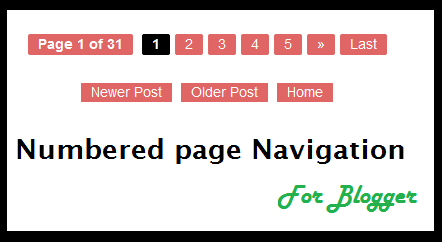
    This is awesome page navigation for blogger with Css hover effect even I am also using this widget for my blog you can see this at last of my blog.

    This only don't add numbered but i also modify post older,home and newer links.

    To add this widget to your blog follow below steps-


    Step 1


    1. Go to Design > Edit HTML > Check mark Expand Widget Templates and Find <b:includable id='mobile-index-post' var='post'>
    2. Paste below code before the above line.

    <b:includable id='page-navi'>
    <div class='pagenavi'>
    <script type='text/javascript'>
    var pageNaviConf = {
    perPage: 7,numPages: 5,firstText: &quot;First&quot;,
    lastText: &quot;Last&quot;,
    nextText: &quot;&#187;&quot;,
    prevText: &quot;&#171;&quot;
    }
    </script>
    <script src='http://awesome-navigation.googlecode.com/files/onlinetrick.js' type='text/javascript'/>
    <div class='clear'/>
    </div>
    </b:includable>


    Step 2


    1. Now Find This Code <b:include name='nextprev'/>
    2. Replace <b:include name='nextprev'/>  code with following code.


    <b:if cond='data:blog.pageType == &quot;index&quot;'>
    <b:include name='page-navi'/>
    <b:else/>
    <b:if cond='data:blog.pageType == &quot;archive&quot;'>
    <b:include name='page-navi'/>
    </b:if>
    <b:else/>
    <b:if cond='data:blog.pageType == &quot;item&quot;'>
    <b:include name='nextprev'/>
    </b:if>
    </b:if>


    Step 3


    1. Find ]]></b:skin> and copy the below code and paste before the ]]></b:skin>


    #blog-pager, .pagenavi {
         clear: both;
         text-align: center;
         margin: 30px auto 10px;
    }
    #blog-pager a, .pagenavi span, .pagenavi a {
         margin: 0 5px 0 0;
         padding: 2px 10px 3px;
         text-decoration: none;
         color: #fff;
         background: #e06666;
         -moz-border-radius: 2px;
         -khtml-border-radius: 2px;
         -webkit-border-radius: 2px;
         border-radius: 2px;
    -webkit-transition: all .3s ease-in;
    -moz-transition: all .3s ease-in;
    -o-transition: all .3s ease-in;
    transition: all .3s ease-in;
    }
    #blog-pager a:visited, .pagenavi a:visited {
         color: #fff;
    }
    #blog-pager a:hover, .pagenavi a:hover {
         color: #fff;
         text-decoration: none;
         background: #000;
    }
    #blog-pager-older-link, #blog-pager-newer-link {
         float: none;
    }
    .pagenavi .current {
         color: #fff;
         text-decoration: none;
         background: #000;
    }
    .pagenavi .pages, .pagenavi .current {
         font-weight: bold;
    }
    .pagenavi .pages {
         color: #fff;
         background: #e06666;
    }

    Now Click Save Template and enjoy!!! 


    Comment if you like this post

    Tuesday, 12 June 2012

    Customize backgrounds colors of Lightbox in blogger with Css


    Blogger LightBox

    Hey Friends Today i will teach you how to customize light box background color in blogger with Css.This is very helpful post for photography bloggers.

    What is light box?

    Whenever you are opening any image in blogger then it opens in lightbox and it default color is black but in this post I will teach you how to edit lightbox background.

    There's no other customization for the lightbox other than turning it on or off, but believe me as a web designer it's not impossible for me to customize it.


    1. Go to your Blogger dashboard
    2. Now Click On Template Tab.
    3. Now Click On Edit HTML Buton.
    4. Find  ]]></b:skin>
    5. Paste Any of Below Css Code Above It.

    Style 1


    To Add this style paste below css code there.

    .CSS_LIGHTBOX_BG_MASK
    {
    background-color:gainsboro !important;
    background-image:-webkit-radial-gradient(center,rgba(255, 255, 255, 0.83),rgba(63, 65, 63, 0.76),rgba(0, 0, 0, 0.87)) !important;
    background-image:-moz-radial-gradient(center,rgba(255, 255, 255, 0.83),rgba(63, 65, 63, 0.76),rgba(0, 0, 0, 0.87)) !important;
    }
    .CSS_LIGHTBOX_FILMSTRIP {
    background-color: rgba(0, 0, 0, 0.411) !important; /* The bottom bar */
    }


    Style 2


    To Add this style paste below css code there.


    .CSS_LIGHTBOX_BG_MASK
    {
    background-color:gainsboro !important;
    background-image:-webkit-radial-gradient(center,rgba(255, 255, 255, 0.83),rgba(63, 65, 63, 0.76),rgba(0, 0, 0, 0.87)) !important;
    }
    .CSS_LIGHTBOX_FILMSTRIP {
    background-color: #F0F8FF !important; /* The bottom bar */
    }

    Style 3


    To Add this style paste below css code there.


    .CSS_LIGHTBOX_BG_MASK {
    background-color: rgba(14, 97, 143, 0.28) !important;
    background-image: -webkit-radial-gradient(top,rgba(221, 235, 255, 0.77),rgba(207, 230, 255, 0.6) ,rgba(83, 83, 83, 0.42)) !important;
    background-image: -moz-radial-gradient(top,rgba(255, 255, 255, 0.77),rgba(203, 255, 234, 0.6) ,rgba(34, 146, 83, 0.42)) !important;
    background-image: -ms-radial-gradient(top,rgba(255, 255, 255, 0.77),rgba(203, 255, 234, 0.6) ,rgba(34, 146, 83, 0.42)) !important;
    }
    .CSS_LIGHTBOX_FILMSTRIP {
    background-color: rgba(101, 122, 231, 0.43) !important;
    background-position: 10px 0px;
    background-size: 115px 60px;
    background-image: -webkit-linear-gradient(315deg,transparent,transparent 33%,rgba(0, 0, 0, 0.12) 33%,rgba(0, 0, 0, 0.12) 66%,transparent 66%,transparent);
    background-image: -moz-linear-gradient(315deg,transparent,transparent 33%,rgba(0, 0, 0, 0.12) 33%,rgba(0, 0, 0, 0.12) 66%,transparent 66%,transparent);
    background-image: -ms-linear-gradient(315deg,transparent,transparent 33%,rgba(0, 0, 0, 0.12) 33%,rgba(0, 0, 0, 0.12) 66%,transparent 66%,transparent);
    -webkit-transition:all 0.6s ease-in-out;
    -moz-transition:all 0.6s ease-in-out;
    -o-transition:all 0.6s ease-in-out;
    -ms-transition:all 0.6s ease-in-out;
    transition:all 0.6s ease-in-out;
    }
    .CSS_LIGHTBOX_FILMSTRIP:hover {
    background-color: #7081DA !important;
    }
    .CSS_LIGHTBOX_FILMSTRIP {
    background-color: #A04343; /* The bottom bar */
    }

    All Credits Go To Deepak Kamat (Author Of Our Blog)

    Comment if You Like This Post

    Saturday, 9 June 2012

    Peel effect Rss Subscription Widget For Blogger

    You may see this peel effect to many other blogs,I just edited it and add feed burner icon + link inside it.

    How it work?

    After installing this widget to your blog,it will start appearing top right corner of your blog,when some one mouse over it the peel effect will start and subscription icon will shows.

    In this Post i will teach You how to add this peel effect Rss Subscription widget to blogger.


    Live Demo


    Follow Below Steps to add this widget to your blog.


    Step 1


    Add jQuery plugin (if your blog have a jquery plugin,ignore this step)

    • Go to blogger dashboard.
    • Click on Template>>>Edit Html.
    • Now search </head>
    • Copy And paste below Code Above </head> code.

    <script src='http://ajax.googleapis.com/ajax/libs/jquery/1.7.1/jquery.min.js' type='text/javascript'/>


    Steps 2


    • Go to blogger Dashboard.
    • Click on Template>>>Edit Html.
    • Now search </head>
    • Copy And paste below Code Above </head> code.

    <style type='text/css'>img { behavior: url(iepngfix.htc) }#pageflip {position: absolute;right: 0; top: 0;float: right;}#pageflip img {width: 50px; height: 52px;z-index: 99;position: absolute;right: 0; top: 0;-ms-interpolation-mode: bicubic;}#pageflip .back-img {width: 50px; height: 50px;overflow: hidden;position: absolute;right: 0; top: 0;z-index:98;background: url(https://blogger.googleusercontent.com/img/b/R29vZ2xl/AVvXsEglK3DCr6wcq0M27ckQSw-EyUjc84U_Nc2Sud6dkQWYBwfbkS5-LzUTgMd4Jwtz9O2WHr2UdUeI6kMUMIQUtu1A-EbXXg0ciHaPF1cDpMQP-a2WkVOFUW3JYZ_7mG2OiwxcscjHyon3TbA/s200/rss+netoops+blog+page+peel.png) no-repeat right top #fff;}</style><a href='http://netoopsblog.blogspot.com'><img src='https://blogger.googleusercontent.com/img/b/R29vZ2xl/AVvXsEiOh_xs3W8wjCNiStJ0r7wsF1CEr4-CYgkT_hY-tOkhxae1bEl-P8tMiqBDABG08zsuSPyHbjBxLmVOV9ySkQqrewcZI92DwqoIhApxxLUuifdF-v3WaxWkZYlfxq47Cu_yPyIbmK76Mac/s1600/1x1juice.png'/></a><script type='text/javascript'>$(document).ready(function(){//Page Flip on hover$(&quot;#pageflip&quot;).hover(function() {$(&quot;#pageflip img , .back-img&quot;).stop().animate({width: &#39;307px&#39;,height: &#39;319px&#39;}, 500);} , function() {$(&quot;#pageflip img&quot;).stop().animate({width: &#39;50px&#39;,height: &#39;52px&#39;}, 220);$(&quot;.back-img&quot;).stop().animate({width: &#39;50px&#39;,height: &#39;50px&#39;}, 200);});});</script>

    Step 3


    • Go To Blogger Dashboard.
    • Click on Template>>>Edit Html.
    • Now Search </body>
    • Copy And paste below Code Above </body> code.

    <div id='pageflip'><a href=' http://feeds.feedburner.com/lordhtml '><img alt='netoops blog' src='https://blogger.googleusercontent.com/img/b/R29vZ2xl/AVvXsEjxJdGMDPdhrHQfLRy1_umuFigqcOyUbGRFM4U2sr2Ezbw8rGTBKeXwE7BuAP6VDC8Y8BwqDywSlQLtykD3mJABZsa61nhcpbUm_XufQBUNyRuBb99g-aXmIIxhP3bvOY47aL7NQIh3Rbr5/s1600/page_flip.png'/></a><div class='back-img'/></div>

    Now save Template.


    You're Done!!! If Any Problem Feel Free To Comment

    Thursday, 7 June 2012

    Add Zoom Hover Effect To Blogger Images


    Css Zoom Hover Effect To Blogger Images

    This is pure Css tutorial,it will help you to make your blog attractive,if you are running photography blog then this effect is best for you.

    Whenever any one mouse-over the image the image will automatically grow in size and after removing mouse it will come back in its own position.

    If you want to add this effect to your blog then follow below steps-


    Adding Css Code


    Paste the following Css code above ]]></b:skin> in your blog html code section.If you don't know how to paste Css then go to Template>Edit HTML>And there find (ctrl + f) ]]></b:skin> and paste following code above it.

    .hovergallery img{
    -webkit-transform:scale(0.8); /*Webkit: Scale down image to 0.8x original size*/
    -moz-transform:scale(0.8); /*Mozilla scale version*/
    -o-transform:scale(0.8); /*Opera scale version*/
    -webkit-transition-duration: 0.5s; /*Webkit: Animation duration*/
    -moz-transition-duration: 0.5s; /*Mozilla duration version*/
    -o-transition-duration: 0.5s; /*Opera duration version*/
    }
    .hovergallery img:hover{
    -webkit-transform:scale(1.1); /*Webkit: Scale up image to 1.2x original size*/
    -moz-transform:scale(1.1); /*Mozilla scale version*/
    -o-transform:scale(1.1); /*Opera scale version*/
    opacity: 1;
    }

    Adding Image


    Now we need to add image,select image in blogger where you want to add this effect and follow below steps-

    <a class="hovergallery" href="Image-URL"><img src=" Image-URL " /></a>

    Replace Image-URL with your image in which you want zoom hover effect.

    After Adding Image URL place the code where you want to display this image.

    If You Are Facing Any Problem Feel Free To Ask By Commenting below.

    Thursday, 24 May 2012

    Grow Horizontal Menu With hover Effect


    I already give you color navigation menu for blogger that was awesome now i wil give you growing menu,When the mouse hover on the menu, it will increase the height and width of menu, making as stylish and attractive.


    This menu is made with the help of-

    • Css
    • Html
    • JavaScript 

    But I converted all code in single code by which it will become easy for you to install it.


    Adding Navigation Menu


    To Add This Menu To Blogger Just Copy The Following code And Paste it in HTML/JAVASCRIPT .


    <ul class="hor-nav">
    <li><a href="#### ">Home</a></li>
    <li><a href="#### ">Contact Us</a></li>
    <li><a href="#### ">About Us</a></li>
    <li><a href="#### ">Advertise</a></li>
    <li><a href="####">Blog</a></li>
    <li><a href="####">Privacy</a></li>
    </ul>

    <style>
    .hor-nav li {
    list-style: none; float:center;}
    .hor-nav li {
    float: left;
    padding-top:10px; padding-bottom:20px;}
    .hor-nav li a {
    font-family: 'Righteous', cursive;
    font-size:17px;
    text-decoration:none;
    float:center;
    position: relative;
    display: block;
    padding: 14px 25px;
    border-bottom: 8px solid #ccc;
    background: #f4f4f4; color: #999;
    -webkit-transition: all 200ms ease-out;
    -moz-transition: all 200ms ease-out;
    -o-transition: all 200ms ease-out;
    transition: all 200ms ease-out; }
    .hor-nav li a:hover {
    text-decoration:none;
    color: #000; background: #fff;
    border-color: #000;
    padding: 25px; top: -14px; }
    .hor-nav li .active a, .nav li .active a:hover {
    background: #444; color: #fff;
    border-color: #000; }
    </style>
    <script type="text/javascript">
      WebFontConfig = {
        google: { families: [ 'Righteous::latin' ] }
      };
      (function() {
        var wf = document.createElement('script');
        wf.src = ('https:' == document.location.protocol ? 'https' : 'http') +
          '://ajax.googleapis.com/ajax/libs/webfont/1/webfont.js';
        wf.type = 'text/javascript';
        wf.async = 'true';
        var s = document.getElementsByTagName('script')[0];
        s.parentNode.insertBefore(wf, s);
      })();
    </script>

    Customization


    In the HTML section, just replace the #### with your page link..

    Wednesday, 23 May 2012

    How To Add CSS Box Shadow To Images

    If your Images are having box shadow then it will look great, In my opinion box shadow makes images quality better (high definition)  If you want to add box shadow to your blog or website follow below steps-

    Box shadows are divided in three part-


    • Outer
    • Inner
    • One Sided
    To Add Box Shadow To Website Copy The Following Css Code And Paste It in Your Website Css Code.

    If you want to add it in blogger then you need to paste it above ]]></b:skin> 


    Outer


    .post-body img {
      -moz-box-shadow:    3px 3px 5px 6px #ccc;
      -webkit-box-shadow: 3px 3px 5px 6px #ccc;
      box-shadow:         3px 3px 5px 6px #ccc;
    }


    Inner


    .post-body img {
      -moz-box-shadow:    inset 0 0 10px #000000;
       -webkit-box-shadow: inset 0 0 10px #000000;
       box-shadow:         inset 0 0 10px #000000;
    }


    One Sided


    .post-body img {
     -webkit-box-shadow: 0 8px 6px -6px black;
      -moz-box-shadow: 0 8px 6px -6px black;
           box-shadow: 0 8px 6px -6px black;
    }

    Change Text Selection Color For Blogger

    text

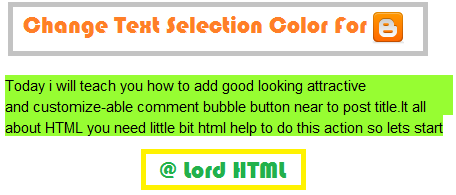
    Hey friends Today i will teach you how to change Text Selection Color For Blogger it will make your blog look more wonderful and it is very simple to apply.

    For doing this change you need to add CSS.

    Browser Support-

    • Mozilla Firefox
    • Google Chrome
    • Apple Safari


    Follow following steps to make this change


    • Go to blogger dashboard.
    • Click on template tab.
    • Now Click on Edit HTML Button.
    • Now Find (ctrl + f) ]]></b:skin>
    • Paste below code above ]]></b:skin>

    /* Code By Lord Html */
    ::-moz-selection {
           background-color: #FFA;
           color: #000;
    }
    /* Code By Lord Html */
    ::selection {
           background-color: #FFA;
           color: #000;
    }

    Now Save Template 


    Customize


    If you want to change selection colors according to your style then you need to change hex color which I highlighted with red and orange, Red color is for selection and Orange Color is for Text.

    For changing Hex color go To our Hex Chart Select Hex Color And Replace It.

    Add Bubble Comments Count in Blogger Post Title

    bubble


    Today i will teach you how to add good looking attractive and customize-able comment bubble button near to post title.It all about HTML you need little bit html help to do this action so lets start our mission

    Follow Steps to add bubble comments count


    • Go to blogger dashboard.
    • Now click on tamplete tab.
    • Now click on Edit Html button.
    • Tick expand widget.
    • Search for (ctrl + f) ]]></b:skin>  .
    • Paste the below code above  ]]></b:skin> 
    .comment-bubble {
    float : right;
    width : 48px;
    height : 48px;
    background : url(https://blogger.googleusercontent.com/img/b/R29vZ2xl/AVvXsEisMiW9EMU5wyAilvyYchhyQ429XPJddX0urGHbuxYNYNAE7Y2osaG4EDJl5mjafByjFM8CavERIZheJPYyX0YJUGy1QOZtWBeH-2pxUnil0j-_Zpt_DQyttCD-RHfl7uk-yCY_vHut7byS/s1600/Comment+Bubble+%2815%29.png) no-repeat;
    font-size : 18px;
    margin-top : -15px;
    margin-right : 2px;
    text-align : center;
    position:absolute;
    }   


    •  Now find  <b:if cond='data:post.link'> And paste below code above it.
    <b:if cond='data:post.allowComments'><a class='comment-bubble' expr:href='data:post.addCommentUrl' expr:onclick='data:post.addCommentOnclick'><data:post.numComments/></a></b:if>


    • Now click on save template button and preview your blog.


    Customize


    To use this images [Right Click and "Copy Image Address/Location"]


    CSS Button With Count For Blogger

    count_button.

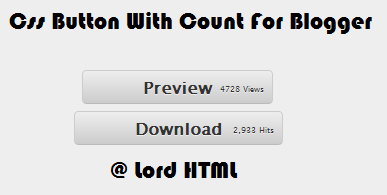
    Today I will teach you how to add this professional looking buttons to your blog.This button need php and css combination but know you will get problem to host php so I will only teach you Css section.

    To Add this Button to blogger you need little knowledge of CSS And Html 
    • This button Css code will go to your blogger template and html code will placed where you want this button to display.

    CSS


    Paste the following Css code above ]]></b:skin> in your blog html code section.If you don't know how to paste Css then go to Template>Edit HTML>And there find (ctrl + f) ]]></b:skin>  and paste following code above it.

    .gray-button {
    background-color: #EEE;
    background-image: -webkit-gradient(linear, left top, left bottom, from(#EEE), to(#CCC));
    background-image: -webkit-linear-gradient(top, #EEE, #CCC);
    background-image: -moz-linear-gradient(top, #EEE, #CCC);
    background-image: -ms-linear-gradient(top, #EEE, #CCC);
    background-image: -o-linear-gradient(top, #EEE, #CCC);
    background-image: linear-gradient(top, #EEE, #CCC);
    border: 1px solid #CCC;
    border-bottom: 1px solid #BBB;
    -webkit-border-radius: 4px;
    -moz-border-radius: 4px;
    -ms-border-radius: 4px;
    -o-border-radius: 4px;
    border-radius: 4px;
    color: #333 !important;
    font: bold 16px "Lucida Grande", "Lucida Sans Unicode", "Lucida Sans", Geneva, Verdana, sans-serif;
    line-height: 1;
    padding: 8px 60px;
    text-align: center;
    text-shadow: 0 1px 0 #EEE;
    display: inline-block;
    margin: 0 5px;
    }
    .gray-button:hover {
    background-color: #dddddd;
    background-image: -webkit-gradient(linear, left top, left bottom, from(#dddddd), to(#bbbbbb));
    background-image: -webkit-linear-gradient(top, #dddddd, #bbbbbb);
    background-image: -moz-linear-gradient(top, #dddddd, #bbbbbb);
    background-image: -ms-linear-gradient(top, #dddddd, #bbbbbb);
    background-image: -o-linear-gradient(top, #dddddd, #bbbbbb);
    background-image: linear-gradient(top, #dddddd, #bbbbbb);
    border: 1px solid #bbb;
    border-bottom: 1px solid #999;
    cursor: pointer;
    text-shadow: 0 1px 0 #ddd;
    text-decoration:none;
    }
    .gray-button:active {
    border: 1px solid #aaa;
    border-bottom: 1px solid #888;
    -webkit-box-shadow: inset 0 0 5px 2px #aaaaaa, 0 1px 0 0 #eeeeee;
    -moz-box-shadow: inset 0 0 5px 2px #aaaaaa, 0 1px 0 0 #eeeeee;
    -ms-box-shadow: inset 0 0 5px 2px #aaaaaa, 0 1px 0 0 #eeeeee;
    -o-box-shadow: inset 0 0 5px 2px #aaaaaa, 0 1px 0 0 #eeeeee;
    box-shadow: inset 0 0 5px 2px #aaaaaa, 0 1px 0 0 #eeeeee;
    }

    HTML

    Now Paste the html code where you want to display this button.

    <a class='gray-button' href='#' target='_blank'>Your text Here </a>


    Remark

    Respect My work don't copy it or publish it without my permision,If you love our work then you are free to share and comment golden words below.If you are having any problem then you can ask by commenting below i will try to answer it.

    Thursday, 17 May 2012

    Divide Blogger Header Into Two Parts


    Today I am going to tell you how to divide your blogger header into two section.It help you to add search bar or navigation menu to header.

    1. Go to Blogger > Design > Edit HTML
    2. Backup your template
    3. Uncheck the "Expand Widget Templates" box if in case it is checked.
    4. Search for the following code:
    #header-wrapper { 
      width:960px; 
      margin:0 auto 10px; 
      border:1px solid $bordercolor; 
      }
    #header-inner { 
      background-position: center; 
      margin-left: auto; 
      margin-right: auto; 
    }
    #header { 
      margin: 5px; 
      border: 1px solid $bordercolor; 
      text-align: center; 
      color:$pagetitlecolor; 
    }
    #header h1 { 
      margin:5px 5px 0; 
      padding:15px 20px .25em; 
      line-height:1.2em; 
      text-transform:uppercase; 
      letter-spacing:.2em; 
      font: $pagetitlefont; 
    }
    #header a { 
      color:$pagetitlecolor; 
      text-decoration:none; 
      }
    #header a:hover { 
      color:$pagetitlecolor; 
      }
    #header .description { 
      margin:0 5px 5px; 
      padding:0 20px 15px; 
      max-width:700px; 
      text-transform:uppercase; 
      letter-spacing:.2em; 
      line-height: 1.4em; 
      font: $descriptionfont; 
      color: $descriptioncolor; 
    }
    #header img { 
      margin-$startSide: auto; 
      margin-$endSide: auto; 
    }


    Now replace this entire code with the following code,


    #header-wrapper{
        width: 960px;
        color: #000;
        margin: 30px auto 0;
        padding: 0px;
        overflow: hidden;
    }
    #header-inner {
        background-position: left;
        background-repeat: no;
    }
    .headerleft h1, .headerleft h1 a,.headerleft h1 a:hover,.headerleft h1 a:visited {
        color: #BF0100;
        font-size: 36px;
        font-family: 'Ultra', serif, Arial;
        font-weight: bold;
        margin: 0;
        padding: 0px 0 5px 0;
        text-decoration: none;
          text-shadow: 6px 6px 4px #ccc;
           line-height:1.2em;
    }
    .headerleft h3 {
        font-family: arial, tahoma,  Sans-Serif;
        font-weight: normal;
        margin: 0;
        padding: 0;
    }
    .headerleft .description {
            color: #3B3B3B;
        font:bold 12px Helvetica, arial,  sans-serif;
        margin: 0px;
        padding: 0 0 20px 0;
            text-shadow: 4px 4px 6px #ccc;
    }


    .headerleft {
             width: 450px;
             float: left;
             margin: 0;
             padding: 0;
             height:80px;
    }
    .headerright {
             width: 468px;
             height:80px;
             float: right;
             margin: 0px;
             padding:1px 0 0 0;
           
    }


    Now search for this code or a similar code that must contain div section of your header:


    <div id='header-wrapper'>
          <b:section class='header' id='header' maxwidgets='1' showaddelement='no'>
    <b:widget id='Header1' locked='true' title='The MBT Lab (Header)' type='Header'/>
    </b:section>

    <b:section and </b:section> tags are important.


    Now replace this with the following code:


    <div id='header-wrapper'>
    <div class='headerleft'>
          <b:section class='headerleft' id='headerleft' maxwidgets='1' showaddelement='no'>
    <b:widget id='Header1' locked='true' title='The MBT Lab (Header)' type='Header'/>
    </b:section>
    </div>
    <div class='headerright'>
    <b:section class='headerright' id='headerright' maxwidgets='1' showaddelement='yes'>
    </b:section> 
    </div>

    Now Save your template and view your Page elements page

    Sunday, 13 May 2012

    Customize Your Blogger Header With Css

    Hey friends today I am going to teach you how to customize your blog header with css,I am sure that this is only the tutorial which will help you because no one ever think to customize blog header but I think to make blogger header more attractive.


    This tutorial is divided into two part one is non hover and another is hover.

    By Hover Part-If you will choose hover part then your blogger header will start moving when some mouse over it or in simple language you can call that it will make your blog header animated.

    By Non-Hover Part-Nothing changes accept mouse over effect.If you will choose this then your blogger header will not get animation effect.but it will save your blog loading time.

    Non-Hover
    Lets make your blogger header look more beautiful for this you need to add following code in your blog css box.


    #header {
    width:1000px;
    height:120px;
    background-color: #FFFFFF;

    /*First Stitch*/
     
       border: 2px dashed #FF0000;
       border-radius: 1px;

    /*Second Stitch*/
       outline: 2px dashed #000000;
       outline-offset: -8px;

       -moz-border-radius 1px;
       -webkit-border-radius: 10px;
       -moz-box-shadow: 0 0 0 4px #282247, 2px 1px 4px 4px rgba(10,10,0,.5);
       -webkit-box-shadow: 0 0 0 4px #ff0030, 2px 1px 4px 4px rgba(10,10,0,.5);
       box-shadow: 0 0 0 0px #47403a, 2px 1px 6px 4px rgba(10,10,0,.5);
    }


      Hover
      Add below code in your blog css to make your blog header hover effect.

      .header:hover
      {
      color: white;
      border: 1px solid gainsboro;
      border: 1px solid rgba(0, 0, 0, 0.1);
      text-transform:uppercase;
      padding:10px;
      width:60000px;
      text-align:center;
      text-shadow:10px 10px white;
      font-size:180px;
      cursor:pointer;
      -webkit-transition:all 0.8s;
      -ms-transition:all 0.8s;
      -moz-transition:all 0.8s;
      -o-transition:all 0.8s;
      transition:all 0.8s;
      height: 100%;
      background-color: #6188F5;
      background-repeat: repeat-x;
      background-position: 8px 0px;
      background-size: 400px 200px;
      background-image: -webkit-linear-gradient(315deg,transparent,transparent 33%,rgba(0, 0, 0, 0.12) 33%,rgba(0, 0, 0, 0.12) 66%,transparent 66%,transparent);
      background-image: -moz-linear-gradient(315deg,transparent,transparent 33%,rgba(0, 0, 0, 0.12) 33%,rgba(0, 0, 0, 0.12) 66%,transparent 66%,transparent);
      background-image: -o-linear-gradient(315deg,transparent,transparent 33%,rgba(0, 0, 0, 0.12) 33%,rgba(0, 0, 0, 0.12) 66%,transparent 66%,transparent);
      background-image: linear-gradient(315deg,transparent,transparent 33%,rgba(0, 0, 0, 0.12) 33%,rgba(0, 0, 0, 0.12) 66%,transparent 66%,transparent);
      -webkit-animation: pb 0.8s linear 0 infinite;
      -ms-animation: pb 0.8s linear 0 infinite;
      -o-animation: pb 0.8s linear 0 infinite;
      -moz-animation: pb 0.8s linear 0 infinite;
      }
      @-webkit-keyframes pb { 0% { background-position:8px 0px; } 100% { background-position:120px 0; } }
      @-ms-keyframes pb { 0% { background-position:10px 0px; } 100% { background-position:-100px 0; } }
      @-moz-keyframes pb { 0% { background-position:10px 0px; } 100% { background-position:-100px 0; } }
      @-o-keyframes pb { 0% { background-position:10px 0px; } 100% { background-position:-100px 0; } }

      #header {
      width:1000px;
      height:120px;
      background-color: #FFFFFF;

      /*First Stitch*/
         
         border: 2px dashed #FF0000;
         border-radius: 1px;

      /*Second Stitch*/
         outline: 2px dashed #000000;
         outline-offset: -8px;

         -moz-border-radius 1px;
         -webkit-border-radius: 10px;
         -moz-box-shadow: 0 0 0 4px #282247, 2px 1px 4px 4px rgba(10,10,0,.5);
         -webkit-box-shadow: 0 0 0 4px #ff0030, 2px 1px 4px 4px rgba(10,10,0,.5);
         box-shadow: 0 0 0 0px #47403a, 2px 1px 6px 4px rgba(10,10,0,.5);
      }

      How to Add Css Code To Blogger-

      1. Go to blogger dashboard.
      2. Now click on template tab.
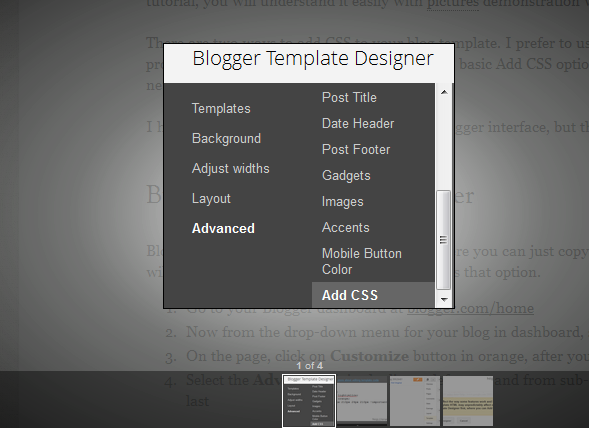
      3. Click on customize button and there you will find Add css option paste the below css code there.

      If you wan't to customize it then read below-

      • If you want to customize header background color then Replace #FFFFFF  it with your favorite color code
      • If you want to change first stitch color then replace #FF0000 it with your favorite color code
      • If you want to customize second stitch color then replace #000000 it with your favorite color code

      That's all now just save it and preview your website if you are facing any problem then feel free to comment below. 

      Friday, 11 May 2012

      Social media follow us buttons for blogger


      This is social media button with bubble effect i already give you same social media like this but i just change px of this button and also images by which it looks great.

      To add this button to blogger follow some quick steps-
      • Go to blogger dashboard.
      • Now go to layout and add html/javascript.
      • Paste the following html code in it.
      <div dir="ltr" style="text-align: left;" trbidi="on"> 
      <ul id="bubble2">
      <li>
              <a href="YOUR-TWITTER-LINK" title="Follow me on Twitter">
                  <img alt="Follow me on Twitter" class="small" src="https://blogger.googleusercontent.com/img/b/R29vZ2xl/AVvXsEjSkyKd7r6F8lBPjkVRRl3Eh-VhzoYk8xyq61Q8SLrjOrt_ZWXQYkWyj1faRZ9n5GKQ0DkYf59bhyphenhyphenrG3VU6g5l-rjmMipD9GENlEImdKhb9uKJePOAacpIUtIMXZ-XOXw5bB3ATrkNYh6_z/s1600/tw.png?w=96" />
                  <img alt="Follow me on Twitter" class="large" src="https://blogger.googleusercontent.com/img/b/R29vZ2xl/AVvXsEjDX1feFBhb3V71fx6pUIkBo66QHmppA4BHGjAlS7JOQeaa43FF4yUNy4HxX7XnX8sLi-2969dQCE3qEiWw5ewosEaIMirjsqf1JX5MSnOvjtCKGmncA_FA0UfWUHJCyMGjzvJ_KVBthyphenhyphenaD/s1600/tw2.png" />
              </a>
            </li>
      <li>
              <a href="YOUR-FACEBOOK-LINK" title="I'm on Facebook">
                  <img alt="I'm on Facebook" class="small" src="https://blogger.googleusercontent.com/img/b/R29vZ2xl/AVvXsEiAjvU5lj5LJSfxAIOoo_WTKTBcQQ44m59xp1aHMN9YH1naOVqPHqiOACfRdmhCjgKTqqiAsP_jVQhDNbvgYKd238CrB2KsGN3BRQ7IFBkbeoR7Q-Q2B7piOhxqadbRiekvMl7tauRj36Qy/s1600/fb.png" />
                  <img alt="I'm on Facebook" class="large" src="https://blogger.googleusercontent.com/img/b/R29vZ2xl/AVvXsEg268LsN7EeSnJWOrzHa3mi2h5-w1VLiS21CQxrQR_nlflyf0HEJQn6zIeJpZ9hEKo9Cc7vlng2r9q4SKUp_4KO5cMBPSizYZ5abnnI4Bs2owjQjDwRxAWlMKRfip0642oInrItx104qjEp/s1600/fb2.png?w=580" />
              </a>
            </li>
      <li>
              <a href="YOUR-FEEDBURNER-LINK" title="Full RSS Feed">
                  <img alt="Full RSS" class="small" src="https://blogger.googleusercontent.com/img/b/R29vZ2xl/AVvXsEhWf1vS8Sm1HK7zTN2FV9Wywr2i4P7-YRKE2mp2QXsLCSI9qCBll2aEePNVJwaaQM3IgpCMTg_EONYOpeCtbsjblzAHkcz_kM2Tvyi6idiwmfwXxT9R6ctzqhKinMHGtdE6tYvALW9KUFcU/s1600/rss.png" />
                  <img alt="Full RSS" class="large" src="https://blogger.googleusercontent.com/img/b/R29vZ2xl/AVvXsEiTNIoS-IdY_k6Z4U2SFKwfmjYlGyyYu5DE8vm5_v_0JR4K3mTxzQVhhnARdl27h69rL5FJyjYbDre1x9kPp9pmGC2ABUMqJ5cBEhqx3RJ4pfI2tBXIcqU_A4oqXGOWU-UModtq9B4jo4pi/s1600/rss2.png" />
              </a>
            </li>?

      Don't Forget to replace YOUR-TWITTER-FACEBOOK-RSS-LINK 

      Now we need to design this button for that wee need to paste Css code.

      • Go To Blogger > Layout > Edit HTML.
      • Search For ]]></b:skin>
      • And paste the code below just above ]]></b:skin>
      #bubble2 { 
          list-style: none;
          margin: 20px 0px 0px;
          padding: 0px;
      }
      #bubble2 li {
          display: inline-block;
          margin: 0px 5px;
          padding: 0px;
          width: 72px;
          height: 72px;
      }
      #bubble2 li a img {
          position: relative;
          border: none;
      }

      #bubble2 li a img.large {
          display: none;
      }

      #bubble2 li a:hover img.small {
          display: none;
          z-index: 0;
      }

      #bubble2 li a:hover img.large {
          display: block;
          margin-top: -8px;
          margin-left: -8px;
          z-index: 1000;
      }?


      Now Save it.


      If you are facing any problem then comment below.

      Sunday, 6 May 2012

      Wordpress style search widget for blogger


      I don't like WordPress so much but the things i like in WordPress are there style.They are using Css and html in perfect way by which user don't need to edit there blog so much.

      Today I will teach you how to add good looking hover effect css search box to blogger.


      To Add This Search Box in your blog follow below steps-

      • Go to blogger dashboard.
      • Click on layout button.
      • Now there Add Gadget.
      • Select html/Javascript and paste following code there.

      <style>

      #search {

      }

      #search input[type="text"] {
          background: url(search-white.png) no-repeat 10px 6px #fcfcfc;
          border: 1px solid #d1d1d1;
          font: bold 12px Arial,Helvetica,Sans-serif;
          color: #bebebe;
          width: 150px;
          padding: 6px 15px 6px 35px;
          -webkit-border-radius: 20px;
          -moz-border-radius: 20px;
          border-radius: 20px;
          text-shadow: 0 2px 3px rgba(0, 0, 0, 0.1);
          -webkit-box-shadow: 0 1px 3px rgba(0, 0, 0, 0.15) inset;
          -moz-box-shadow: 0 1px 3px rgba(0, 0, 0, 0.15) inset;
          box-shadow: 0 1px 3px rgba(0, 0, 0, 0.15) inset;
          -webkit-transition: all 0.7s ease 0s;
          -moz-transition: all 0.7s ease 0s;
          -o-transition: all 0.7s ease 0s;
          transition: all 0.7s ease 0s;
          }

      #search input[type="text"]:focus {
          width: 200px;
          }

      </style>
      <form method="get" action="/search" id="search">
        <input name="q" type="text" size="40" placeholder="Search..." />
      </form><br/>


      Comment Your Problems Below

      Monday, 30 April 2012

      Customize Facebook Like Box With CSS


      The Facebook Like box placed on your website /blog is probably the easiest way to attract new fans to your Facebook page.But the default Facebook like box is not having good look at all.Its very ugly many of my fans told me to customize Facebook like box with the help of css.I find a way by which we can make facebook like box look good and attractive you don't need to do any think you only need to copy and paste the code.

      To get started, copy the code below and paste it in html/javascript which you will find in layout.


      <style type="text/css">
       .facebookOuter {
          background-color:#F4F4F4;
          width:250px;
          padding:10px 0 10px 10px;
          height:250px;
          border:1px solid #CCCCCC;
        }
       .facebookInner {
          height:250px;
          overflow:hidden;
        }
      </style>

      <div class="facebookOuter">
       <div class="facebookInner">
        <div class="fb-like-box"
            data-width="245" data-height="290"
            data-href="http://www.facebook.com/lordhtml"
            data-border-color="#F4F4F4" data-show-faces="true"
            data-stream="false" data-header="false">
        </div>
       </div>
      </div>

      <div id="fb-root"></div>

      <script>(function(d, s, id) {
        var js, fjs = d.getElementsByTagName(s)[0];
        if (d.getElementById(id)) return;
        js = d.createElement(s); js.id = id;
        js.src = "//connect.facebook.net/en_US/all.js#xfbml=1";
        fjs.parentNode.insertBefore(js, fjs);
      }(document, 'script', 'facebook-jssdk'));
      </script>


      Now You Need To Replace Your Facebook page Url with http://www.facebook.com/lordhtml which you will find in 19 line of code.


      If you are facing any problem regarding to this post then comment below :)

      Wednesday, 28 March 2012

      Css3 Navigation Menu For Blogger


      Sky beauty is pure css navigation menu.It is made by Aumkar Thakur (Me),Sky beauty is divided into two part one is up to down and one is left to right,i know you don't understand this but when you will see live demo then you are going to understand it.

      Read more �

      Sunday, 18 March 2012

      How to center your blog header in Blogger.


      In blogger there is no direct option is given to make our blog header in center.When I created this blog i also got problem to make my blog header center but with my Css knowledge I made my blog header logo centered.

      Read more �

      Tuesday, 13 March 2012

      How to remove border and shadow from blogger images.


      Many of blogger are having a problem in removing shadow and border from a image.As you can see above the example that how i removed border and shadow from blogger image its all done with Css.

      Read more �