This is default featured slide 1 title

Go to Blogger edit html and find these sentences.Now replace these sentences with your own descriptions.This theme is Bloggerized by Lasantha Bandara - Premiumbloggertemplates.com.

This is default featured slide 2 title

Go to Blogger edit html and find these sentences.Now replace these sentences with your own descriptions.This theme is Bloggerized by Lasantha Bandara - Premiumbloggertemplates.com.

This is default featured slide 3 title

Go to Blogger edit html and find these sentences.Now replace these sentences with your own descriptions.This theme is Bloggerized by Lasantha Bandara - Premiumbloggertemplates.com.

This is default featured slide 4 title

Go to Blogger edit html and find these sentences.Now replace these sentences with your own descriptions.This theme is Bloggerized by Lasantha Bandara - Premiumbloggertemplates.com.

This is default featured slide 5 title

Go to Blogger edit html and find these sentences.Now replace these sentences with your own descriptions.This theme is Bloggerized by Lasantha Bandara - Premiumbloggertemplates.com.

Showing posts with label Buttons. Show all posts

Wednesday, 6 June 2012

10 Best Pinterest Follow Button For Blogger

Pinterest Social Button

In this tutorial I will give you 10 awesomely designed pinterest button which you can use in your blog.This is not only for blogger you can use this buttons for WordPress or any other site also.

Copy Any of HTML code and paste where you want to display this buttons.


Button 1


Follow Me on Pinterest


<a href="http://pinterest.com/YOURUSERNAME"><img alt="Follow Me on Pinterest" src="https://blogger.googleusercontent.com/img/b/R29vZ2xl/AVvXsEhtt5M5tSLz2wBx4tL3XuWjjPC-qqkaGbW1PH-d5mnHB4cm9j-Cwq9emr_Evv-fKaLwFn3f2eZ0QiT94UikNXQDlaZQxYzS1mfv54HF3YhOuNLniUqWs0JOoQHJZ-8uv5k4LFtStCIDE-Bs/s1600/256_followmypins.png" /></a>
</div>

Button 2


Follow Me on Pinterest

<a href="http://pinterest.com/YOURUSERNAME"><img alt="Follow Me on Pinterest" src="https://blogger.googleusercontent.com/img/b/R29vZ2xl/AVvXsEgu_qePp3owT8mOuOPVM7q7VNyqhSLxHsSJCaatDQ4tlpfF3Q4fJyVWLWSOdsFoAr3PLtGpTidyBG0D9SMMazkDPznX0QooqH9rTsGGd6glDbLbiIEwxg-kcudUOB9xjK7bZoXB-HfoiJDe/s1600/256_followmyboards.png" /></a>
</div>


Button 3


Follow Me on Pinterest

<a href="http://pinterest.com/YOURUSERNAME"><img alt="Follow Me on Pinterest" src="https://blogger.googleusercontent.com/img/b/R29vZ2xl/AVvXsEiWDHrO2TeJk3qe20M3ZZQlzUe0W3KeH898sQSpb6OUTXLakOuQ-TdcO2icPN98MwmBtHlw1zP0hQwcsn5NWG7Z4_KZ_CpYT0KnTkOFGB8VZWKpMSwezRnFe-LUU63iZvHLS2agLhh5MEi1/s1600/128_square_pinlove.png" /></a>
</div>


Button 4


Follow Me on Pinterest

<a href="http://pinterest.com/YOURUSERNAME"><img alt="Follow Me on Pinterest" src="https://blogger.googleusercontent.com/img/b/R29vZ2xl/AVvXsEgptHrU4H2VsVYOCoe3WI8zmYpr2KZz7Jpo_8Ae7XVnMuBE2Bd6kwh77vpa3tKANzKsEGPjSwQMimyRIS2XabM0GQZkXSDihQtl3u2pIukvZOzg8Lit2oTHR42sjkZ8zsaL1lh21uscSVif/s1600/128_square_pinaddict.png" /></a>
</div>


Button 5


Follow Me on Pinterest


<a href="http://pinterest.com/YOURUSERNAME"><img alt="Follow Me on Pinterest" src="https://blogger.googleusercontent.com/img/b/R29vZ2xl/AVvXsEhFuJSiMwSSoAyUbhcY6wlCPABP_bC_MhLEKxIs8mb_xVQK-ah3qB2oSIpmm2FPgUSrl5gQd3H0Coh_B4g0JX78GcXtsYm_VFTxkA_WiGFogDXE95cNpYT_Kr_wr1CHTuYCpmns5_dkXVs5/s1600/128_square_logo.png" /></a>
</div>

Button 6


Follow Me on Pinterest


<a href="http://pinterest.com/YOURUSERNAME"><img alt="Follow Me on Pinterest" src="https://blogger.googleusercontent.com/img/b/R29vZ2xl/AVvXsEi7YyBd4HcaabLZeIhu_jpvcLMoBQGme7Hh6vj9KcDas1A2GOBfyoUx4cumSUioyrvvNyQ4Bgq1ziXiYfsSt6RccqGkeNp_2L6R5PGvmXVytN3Rknj0Lb_LHmPJxv5YxGgqVWjHkTTFkoQp/s1600/128_round_pinlove.png" /></a>
</div>

Button 7


Follow Me on Pinterest

<a href="http://pinterest.com/YOURUSERNAME"><img alt="Follow Me on Pinterest" src="https://blogger.googleusercontent.com/img/b/R29vZ2xl/AVvXsEjnb7hdh0oh99NM8fjcPluTEnTzJBLnagr2iUuTDfy-hjxGwCO6rmyiP25DHdxM6FL4uizpzKtkuL2TNQhDvbHKV9-L2ZZF8s6sGud1IUEojbGHNgnj_U_R3fgSIVndG2Ssnym80-4PHXyB/s1600/128_round_logo.png" /></a>
</div>

Button 8


Follow Me on Pinterest


<a href="http://pinterest.com/YOURUSERNAME"><img alt="Follow Me on Pinterest" src="https://blogger.googleusercontent.com/img/b/R29vZ2xl/AVvXsEgINXd8Qs9Nwlv1fLADR0jKa1STuv6MnBL2pnZ26AHZbI8Ju-eqDK54HkuZBPSuS0bSJRCyE097FD-dfn6KSMC1Cd5tmrxKGF7pZjmm_PrMTw-l5LxFiCtCCrzUN8dZhxwsfQBZrbmWfOH3/s1600/128_round_ilovepins.png" /></a>
</div>

Button 9


Follow Me on Pinterest


<a href="http://pinterest.com/YOURUSERNAME"><img alt="Follow Me on Pinterest" src="https://blogger.googleusercontent.com/img/b/R29vZ2xl/AVvXsEigM9g_ltUoPZxF5mgqU1o8PGHwkdXaa27FnR8bz7DThDKB0FSLnR-UxbMpGOcO0xVMu6fYsE0VpiQfBRg_kU2lCafqgafUEX6BEB9ZpAfOkS8GkVC6AtGFeV2CrI1WhASpSWWo_ax1cgN3/s1600/128_rectangle_pinterestlove.png" /></a>
</div>


Button 10


Follow Me on Pinterest


<a href="http://pinterest.com/YOURUSERNAME"><img alt="Follow Me on Pinterest" src="https://blogger.googleusercontent.com/img/b/R29vZ2xl/AVvXsEiuQX1N2sElnWz395X7rt6OiYR4UPhneKeGeFGtioV0ie1LBc56-G-L4brHqCGM-VZ8HONGxQ4QijSZ38lyDs5lREPJR-5M0WnbWD8E7Hp1KPZZoD7PVGpYdzz2XscO5cmc_VB1iu9WTlR1/s1600/128_rectangle_ilovepinterest.png" /></a>
</div>
Wednesday, 23 May 2012

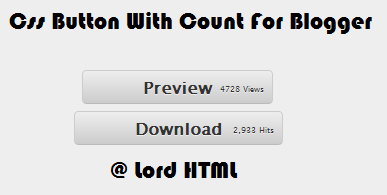
CSS Button With Count For Blogger

count_button.

Today I will teach you how to add this professional looking buttons to your blog.This button need php and css combination but know you will get problem to host php so I will only teach you Css section.

To Add this Button to blogger you need little knowledge of CSS And Html 
  • This button Css code will go to your blogger template and html code will placed where you want this button to display.

CSS


Paste the following Css code above ]]></b:skin> in your blog html code section.If you don't know how to paste Css then go to Template>Edit HTML>And there find (ctrl + f) ]]></b:skin>  and paste following code above it.

.gray-button {
background-color: #EEE;
background-image: -webkit-gradient(linear, left top, left bottom, from(#EEE), to(#CCC));
background-image: -webkit-linear-gradient(top, #EEE, #CCC);
background-image: -moz-linear-gradient(top, #EEE, #CCC);
background-image: -ms-linear-gradient(top, #EEE, #CCC);
background-image: -o-linear-gradient(top, #EEE, #CCC);
background-image: linear-gradient(top, #EEE, #CCC);
border: 1px solid #CCC;
border-bottom: 1px solid #BBB;
-webkit-border-radius: 4px;
-moz-border-radius: 4px;
-ms-border-radius: 4px;
-o-border-radius: 4px;
border-radius: 4px;
color: #333 !important;
font: bold 16px "Lucida Grande", "Lucida Sans Unicode", "Lucida Sans", Geneva, Verdana, sans-serif;
line-height: 1;
padding: 8px 60px;
text-align: center;
text-shadow: 0 1px 0 #EEE;
display: inline-block;
margin: 0 5px;
}
.gray-button:hover {
background-color: #dddddd;
background-image: -webkit-gradient(linear, left top, left bottom, from(#dddddd), to(#bbbbbb));
background-image: -webkit-linear-gradient(top, #dddddd, #bbbbbb);
background-image: -moz-linear-gradient(top, #dddddd, #bbbbbb);
background-image: -ms-linear-gradient(top, #dddddd, #bbbbbb);
background-image: -o-linear-gradient(top, #dddddd, #bbbbbb);
background-image: linear-gradient(top, #dddddd, #bbbbbb);
border: 1px solid #bbb;
border-bottom: 1px solid #999;
cursor: pointer;
text-shadow: 0 1px 0 #ddd;
text-decoration:none;
}
.gray-button:active {
border: 1px solid #aaa;
border-bottom: 1px solid #888;
-webkit-box-shadow: inset 0 0 5px 2px #aaaaaa, 0 1px 0 0 #eeeeee;
-moz-box-shadow: inset 0 0 5px 2px #aaaaaa, 0 1px 0 0 #eeeeee;
-ms-box-shadow: inset 0 0 5px 2px #aaaaaa, 0 1px 0 0 #eeeeee;
-o-box-shadow: inset 0 0 5px 2px #aaaaaa, 0 1px 0 0 #eeeeee;
box-shadow: inset 0 0 5px 2px #aaaaaa, 0 1px 0 0 #eeeeee;
}

HTML

Now Paste the html code where you want to display this button.

<a class='gray-button' href='#' target='_blank'>Your text Here </a>


Remark

Respect My work don't copy it or publish it without my permision,If you love our work then you are free to share and comment golden words below.If you are having any problem then you can ask by commenting below i will try to answer it.

Friday, 18 May 2012

Add Pinterest And Other Social Media Buttons To Blogger

Pinterest is another great social media which we need to add in our blog so we need to redeing sharing system because of pinterest

Today I will give you very good looking social media button with Pinterest pin button also which you can put anywhere


To Add this button follow below steps-


Copy the following code and paste it above </head> tag

<script type="text/javascript" src="http://w.sharethis.com/button/buttons.js"></script><script type="text/javascript">stLight.options({publisher: "84975643-4f75-47df-915d-679f79566717"}); </script>

Now copy the below code and paste it where you want this button to appear

<span class='st_fblike_hcount' displayText='Facebook Like'></span><span class='st_facebook_hcount' displayText='Facebook'></span><span class='st_plusone_hcount' displayText='Google +1'></span><span class='st_googleplus_hcount' displayText='Google +'></span><span class='st_pinterest_hcount' displayText='Pinterest'></span><span class='st_twitter_hcount' displayText='Tweet'></span>

Suggestion-
Add this gadget below header and above post area it will look great.

If you want me to add more buttons in this gadget then comment your opinion below

Thursday, 17 May 2012

Add A Pinterest Follow Button To Blogger With Hover Effect


Pinterest is very good social networking site in my old post i showed you that how to add pinterest follow button to blogger but today I will show you how to add pinterest follow button to blogger with hover effect.Hover effect is very nice trick to make any thing look nice.

Button is contaning Red And Back Hover.Button will look simple like all other buttons but when any one mouse over it then button color changes to black.

See live demo of button by clicking on Preview button-


Code For Button 1

<a href="http://pinterest.com/YOURUSERNAME"><img alt="Click Me" onmouseout="this.src='https://blogger.googleusercontent.com/img/b/R29vZ2xl/AVvXsEgv4DbxhIMQHIhgousu6aNlle47bP4x3ZtTw6DslbWF2M37PiZqQTxpCBDYCBfEGo4BwzK9jfsxM_hict2y5EdimxfZcHpwEIiJdoiaoYJeDEnVZpsJAz88pMCM7oY9kljT6UVYEzUYertj/s1600/big-p-button.png'" onmouseover="this.src='https://blogger.googleusercontent.com/img/b/R29vZ2xl/AVvXsEidhiZjlvZHjwj7sZHo8gQerBNLSO0r9tqAUkFeF6yQ-KDoxxQu7TpVTIMXq_JBPvXFAcQXxLxQtDcxbk0mGbKH5RtDR1JEHlU2em38h4MfKcEvj34sB2zgf1XhgCNB-IOQtvOaSGgK43aW/s1600/78C5A9D5-5126-4AE2-B66B-6218C89F81CA.jpg'" src="https://blogger.googleusercontent.com/img/b/R29vZ2xl/AVvXsEgv4DbxhIMQHIhgousu6aNlle47bP4x3ZtTw6DslbWF2M37PiZqQTxpCBDYCBfEGo4BwzK9jfsxM_hict2y5EdimxfZcHpwEIiJdoiaoYJeDEnVZpsJAz88pMCM7oY9kljT6UVYEzUYertj/s1600/big-p-button.png" /></a></div>

Code For Button 2


<a href=" http://pinterest.com/YOURUSERNAME "><img alt="Click Me" onmouseout="this.src='https://blogger.googleusercontent.com/img/b/R29vZ2xl/AVvXsEjSA13q6BJsyV6Pxkj8dyhQNKEN3Ob_fBJgLqc6e6BLYuklXxrBua5bTa8YH-z2dPP6ZM_pM7nYVEJJNRPQhq8QURZCAUf3KgM3gJNuhtZeHC1loz1aignB6kMPXEelnTxpvfoy4YR3-X2C/s1600/follow-on-pinterest-button.png'" onmouseover="this.src='https://blogger.googleusercontent.com/img/b/R29vZ2xl/AVvXsEiBC6BPMFNzOBqAVgRk2VQu0qpKDZkecw6X7pSZaVE7NxVrYuGSOS2WHF1OMuBTU7U0V0DzFWqQI1p7JA85FouHGopqBM8HOS1HZbGyio70mpRfezjeWIHMQJ2RX28adZRpg57Ygjc4zjQH/s1600/35555D36-3CAC-430D-905E-73C84EDC9304.jpg'" src="https://blogger.googleusercontent.com/img/b/R29vZ2xl/AVvXsEjSA13q6BJsyV6Pxkj8dyhQNKEN3Ob_fBJgLqc6e6BLYuklXxrBua5bTa8YH-z2dPP6ZM_pM7nYVEJJNRPQhq8QURZCAUf3KgM3gJNuhtZeHC1loz1aignB6kMPXEelnTxpvfoy4YR3-X2C/s1600/follow-on-pinterest-button.png" /></a></div>

Subscribe And Comment Golden Words Below If You like Our Work :)

Tuesday, 20 March 2012

Add Image Instead of Read More Link in Blogger.


Many user are having problem to replace read more link instead of read more link.Today I will tell you how to replace read more link with image.

Read more �

Sunday, 18 March 2012

How To Add Social Media Buttons Below Blogger Posts.


We already saw "How Add Social Media Share Buttons For Blogger" but today I will teach you how to add Google+, Facebook and Twitter buttons to Blogger. We will align the buttons horizontally below the Blogger post titles.

Read more �

Sunday, 11 March 2012

Pure CSS Social Media gadget for blogger.


This tutorial will show you how to make pure CSS social media gadgets for blog.As you can see above live demo of this gadget that when we mouse over it size of the buttons increase its made by me Aumkar Thakur.
So if you also want to but these type of buttons then follow some quick steps.


Read more �

Friday, 9 March 2012

Scroll to top button for blogger


Scroll to top is very useful button for visitor it will just save there energy/time to move on top of page.You
can see i also put an beautiful "Back to Top" button on right of my page.This button will go very smoothly up and after going up it will invisible.


Read more �

Saturday, 3 March 2012

Facebook Animated Share Button For Blogger.


As you see above a beautiful animated Facebook share button.Facebook share button is very useful for your website to grow traffic.This button attract the user to share your blog :D if you want to put the same button in your blog then follow some quick step.

Copy The Following Code And Paste In You Website-


Read more �

Wednesday, 22 February 2012

Hover effect buttons in css

Today I am going to teach you how to make good hover effect buttons for your page,blog or website.
As you all know it all starts with Css & Html.So you should have little knowldge of Css & Html.
Its not very tough to make this god looking hover effect butons.

Hover Me

If you also want to put this good looking buttons in your blog then follow some quick steps-

Read more �

Friday, 17 February 2012

How to make mouse over download buttons.

Click MeClick Me

Click Me


Hello friends today I am going to show you how to make mouse over download buttons for blogger or any website.This mouse over buttons are used to make your website attractive.The Html code of this buttons are made by Me you just have to copy the code and paste in you website.

Read more �