This is default featured slide 1 title

Go to Blogger edit html and find these sentences.Now replace these sentences with your own descriptions.This theme is Bloggerized by Lasantha Bandara - Premiumbloggertemplates.com.

This is default featured slide 2 title

Go to Blogger edit html and find these sentences.Now replace these sentences with your own descriptions.This theme is Bloggerized by Lasantha Bandara - Premiumbloggertemplates.com.

This is default featured slide 3 title

Go to Blogger edit html and find these sentences.Now replace these sentences with your own descriptions.This theme is Bloggerized by Lasantha Bandara - Premiumbloggertemplates.com.

This is default featured slide 4 title

Go to Blogger edit html and find these sentences.Now replace these sentences with your own descriptions.This theme is Bloggerized by Lasantha Bandara - Premiumbloggertemplates.com.

This is default featured slide 5 title

Go to Blogger edit html and find these sentences.Now replace these sentences with your own descriptions.This theme is Bloggerized by Lasantha Bandara - Premiumbloggertemplates.com.

Thursday, 14 June 2012

How To Add Meta Tags For Each Post In Blogger

meta tags


Meta tag are very important for any blog in olden day's I was adding meta tags by posting code but now blogger made it easy for blogger to add meta tags.In this post i will teach you how to add meta tags to blog and also to each post in blogger.


Adding Meta Tags To Blog


  • Go to blogger Dashboard
  • Click On Settings Tab
  • Now Click On Search Preference
search

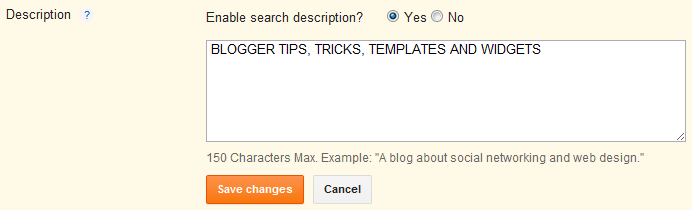
  • Now Enable search Description And Write your blog description there.

description


  • After Adding Description Save It.


Adding Meta Tags To Each Blog Post


After doing above steps whenever you will post any new post click on search description tab and add post description there and save it.If you are having any problem see below picture.


click on image to make it big


How To Increase Blog Width Without Blogger Template Designer

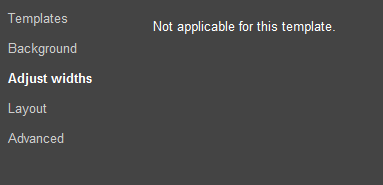
Many blogger templates are not having any option to increase blog with directly.Tomorrow when I was chatting with my friends on Google Plus he told me that he want to increase width of his blog but there is no option available so I write this post to show you how to increase your blog width from html coding.

No Option Available


Increasing Blog Width With HTML


  • Go To Blogger Dashboard.
  • Now Click On Template Tab.
  • Now Click On Edit HTML button.
  • Tick Expand Widget
  • Now Search Following Code (How To Search Code)

#outer-wrapper {
width: 0000px;
margin:0 auto;
padding:10px;
text-align:left;
font: $bodyfont;
}
#main-wrapper {
width: 0000px;
margin-left: 20px;
float: left;
word-wrap: break-word; /* fix for long text breaking sidebar float in IE */
}
#sidebar-wrapper {
width: 0000px;
float: right;
word-wrap: break-word; /* fix for long text breaking sidebar float in IE */
}
#newsidebar-wrapper {
width: 0000px;
float: left;
word-wrap: break-word; /* fix for long text breaking sidebar float in IE */
}
#header-wrapper {
width:0000px;
margin:0 auto 10px;
border:0px solid $bordercolor;
}


Now Replace  width: 0000px;  with width you want and save template.

For example If I want to make my blog 1000px wide then i will replace width with width: 1000px;


Wednesday, 13 June 2012

Reason Shows That You Are Still a Beginner in Blogging


Blogger

I saw many blogger and many of them are good and some of them are still beginners but whenever i give them advice they say "Shut Up I am better than You" So I write this post to show you how I judge them as beginner bloggers.

Blogging is not a game you need to make your blog as perfect as you can.

Practice does not make perfect. Only perfect practice makes perfect.


Checking Blog Status Everytime


If you are checking your blog status every-time then this shows you are beginner,Just don't write any content for getting traffic just write post for getting good response from others.As I always say you that content is king if your blog is containing good amount of content then you will get lot of traffic without any advertisement.


Changing Blog Template Every Week


I saw many blogger changing there blogger template every time this is not good for seo and your blogger visitors.You should choose Unique template for your site and make your site template permanent.

If you want some good template see out template gallery


Starting Blog Post with hello,hi,hey....


Visitor don't visit your blog to do hello hii with you, facebook is there to do this all actvity you should come directly to main topic It will save your time and reader time too


Long Delays Between Updates


You are giving real-time updates when live blogging. You don�t have to do minute by minute updates, but don�t let more than five minutes pass between updates. You are guaranteed to lose your audience. And, you may get bored and distracted.

How To Remove Google Custom Search Logo


 I am geek always want to share some good knowledge with you.I just decided to remove Google custom search watemark,after thinking lot i just made on line Css code and success to remove this logo.

To Remove this Logo Follow Below Steps-

    1. Go to your Blogger dashboard
    2. Now Click On Template Tab.
    3. Now Click On Edit HTML Button.
    4. Find  ]]></b:skin>
    5. Paste Below Css Code Above It and save click on save template button.


    .gsc-input{background:none !important}


    Should I remove this Logo?


    Not at all you should not do this action.This is totally illegal this is only for premium users if you want to remove logo then sigh up and purchase premium account.


    Numbered Page Navigation For Blogger With Css Hover Effect


    Numbered

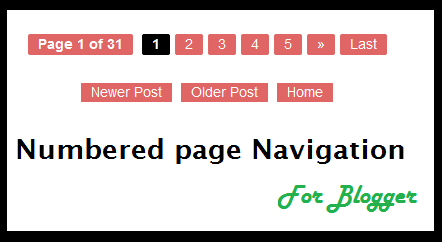
    This is awesome page navigation for blogger with Css hover effect even I am also using this widget for my blog you can see this at last of my blog.

    This only don't add numbered but i also modify post older,home and newer links.

    To add this widget to your blog follow below steps-


    Step 1


    1. Go to Design > Edit HTML > Check mark Expand Widget Templates and Find <b:includable id='mobile-index-post' var='post'>
    2. Paste below code before the above line.

    <b:includable id='page-navi'>
    <div class='pagenavi'>
    <script type='text/javascript'>
    var pageNaviConf = {
    perPage: 7,numPages: 5,firstText: &quot;First&quot;,
    lastText: &quot;Last&quot;,
    nextText: &quot;&#187;&quot;,
    prevText: &quot;&#171;&quot;
    }
    </script>
    <script src='http://awesome-navigation.googlecode.com/files/onlinetrick.js' type='text/javascript'/>
    <div class='clear'/>
    </div>
    </b:includable>


    Step 2


    1. Now Find This Code <b:include name='nextprev'/>
    2. Replace <b:include name='nextprev'/>  code with following code.


    <b:if cond='data:blog.pageType == &quot;index&quot;'>
    <b:include name='page-navi'/>
    <b:else/>
    <b:if cond='data:blog.pageType == &quot;archive&quot;'>
    <b:include name='page-navi'/>
    </b:if>
    <b:else/>
    <b:if cond='data:blog.pageType == &quot;item&quot;'>
    <b:include name='nextprev'/>
    </b:if>
    </b:if>


    Step 3


    1. Find ]]></b:skin> and copy the below code and paste before the ]]></b:skin>


    #blog-pager, .pagenavi {
         clear: both;
         text-align: center;
         margin: 30px auto 10px;
    }
    #blog-pager a, .pagenavi span, .pagenavi a {
         margin: 0 5px 0 0;
         padding: 2px 10px 3px;
         text-decoration: none;
         color: #fff;
         background: #e06666;
         -moz-border-radius: 2px;
         -khtml-border-radius: 2px;
         -webkit-border-radius: 2px;
         border-radius: 2px;
    -webkit-transition: all .3s ease-in;
    -moz-transition: all .3s ease-in;
    -o-transition: all .3s ease-in;
    transition: all .3s ease-in;
    }
    #blog-pager a:visited, .pagenavi a:visited {
         color: #fff;
    }
    #blog-pager a:hover, .pagenavi a:hover {
         color: #fff;
         text-decoration: none;
         background: #000;
    }
    #blog-pager-older-link, #blog-pager-newer-link {
         float: none;
    }
    .pagenavi .current {
         color: #fff;
         text-decoration: none;
         background: #000;
    }
    .pagenavi .pages, .pagenavi .current {
         font-weight: bold;
    }
    .pagenavi .pages {
         color: #fff;
         background: #e06666;
    }

    Now Click Save Template and enjoy!!! 


    Comment if you like this post

    Tuesday, 12 June 2012

    New Facebook Popout Likebox Version 3

    Click Me

    Hover above image to see live demo it is just wesome widget for blogger.I already give you this type of widget for blogger.But now a day's every one is adding same link box to there blog so I decided to give you some thing different.

    You can also try this for other social media like-

    1. Twitter
    2. Pinterest
    3. Facebook old One
    4. Google Plus


    Installing


    • Go to Design-> Page Elements Click on Add Gadget.
    • Select HTML/Javascript from it
    • Leave title as blank ,Copy and Paste the below code into the content section.

    <script type="text/javascript">
    /*<![CDATA[*/
    jQuery(document).ready(function() {jQuery(".noopslikebox").hover(function() {jQuery(this).stop().animate({right: "0"}, "medium");}, function() {jQuery(this).stop().animate({right: "-250"}, "medium");}, 500);});
    /*]]>*/
    </script>
    <style type="text/css">
    .noopslikebox{background: url("https://blogger.googleusercontent.com/img/b/R29vZ2xl/AVvXsEjz5jnakT9YdjEERd_pUMBVAF1iudmDWwAizqXV3iYx5IVmeGjzL3_8CyhG-G1GYK6raaRM6zmVcb1cEryFsmuUI0gxcz4_BtGi7vEl2FfPO4c-FkZ_yzD098XArpgVuXX9Ah765Ncf6O4/s1600/fb_static+button.jpg") no-repeat scroll left center transparent !important;display: block;float: right;height: 270px;padding: 0 5px 0 46px;width: 245px;z-index: 999;position:fixed;right:-250px;top:20%;}
    .noopslikebox div{border:none;position:relative;display:block;}
    .noopslikebox span{bottom: 12px;font: 8px "lucida grande",tahoma,verdana,arial,sans-serif;position: absolute;right: 7px;text-align: right;z-index: 999;}
    .noopslikebox span a{color: gray;text-decoration:none;}
    .noopslikebox span a:hover{text-decoration:underline;}
    </style>
    <div class="noopslikebox">
        <div>
        <iframe src="http://www.facebook.com/plugins/likebox.php?href=http://www.facebook.com/lordhtml&amp;width=245&amp;colorscheme=light&amp;show_faces=true&amp;connections=9&amp;stream=false&amp;header=false&amp;height=270" scrolling="no" frameborder="0" scrolling="no" style="border: medium none; overflow: hidden; height: 270px; width: 245px;background:#fff;"></iframe>
        </div>
    </div>

    Replace the RED highlighted text with your Facebook page URL.